Sheet metal modeling in CAD/CAM systems means creating and editing 3D models of sheet metal parts. Flat patterns are transformed into complex 3D shapes by bending, stamping, drawing, and other manufacturing operations.
In this article, we present the basic concepts of the sheet metal modeling functionality available in the C3D Modeler kernel.
Sheet Metal Parts: Basics
When creating sheet metal parts, a design engineer must adhere to the manufacturing constraints of the material, sheet-bending tools, and other equipment. Some of the constants are configured in the CAD system. A sheet metal model is a thin solid with the following properties.
- Sheet thickness: Since the part is made from a single sheet of metal, the entire body must have the same shell thickness.
- A bend line is the line on the part that represents the boundary between the flat and the curved bend regions.
- A bend radius is the radius of curvature of the inner surface of the bend. It is measured from the bending axis to the sheet surface. To protect the material and maintain structural integrity, the bend radius must not be smaller than the specified minimum.
- A bend angle is the angle between the initial (flattened) and final (bent) positions of two adjacent regions of the sheet.
- The K-factor is a dimensionless value that defines the position of the neutral layer (which is not subjected to tension or compression during bending) relative to the sheet thickness. The K‑factor is the distance from the inner surface of the bend to the neutral layer (t) divided by the total sheet thickness (T). K = t / T. The K factor is used to precisely estimate the bending allowance. The K factor depends on the material properties, bending radius, and angle.
The C3D kernel fully supports sheet metal modeling. It can create such sheet metal bodies as plates and split shells, and perform sheet body operations: bends, jogs, closed corners, generating flat patterns, etc.
Creating a Sheet Body
C3D Modeler supports multiple sheet body creation options. Let us consider each of them.
Flat Contour Extrusion
It is similar to extrusion in solid modeling. A closed contour is directly transformed into a sheet body with the specified thickness. If there are several contours, one of them must be an envelope containing all other contours. In this case, the internal contours represent cutouts.
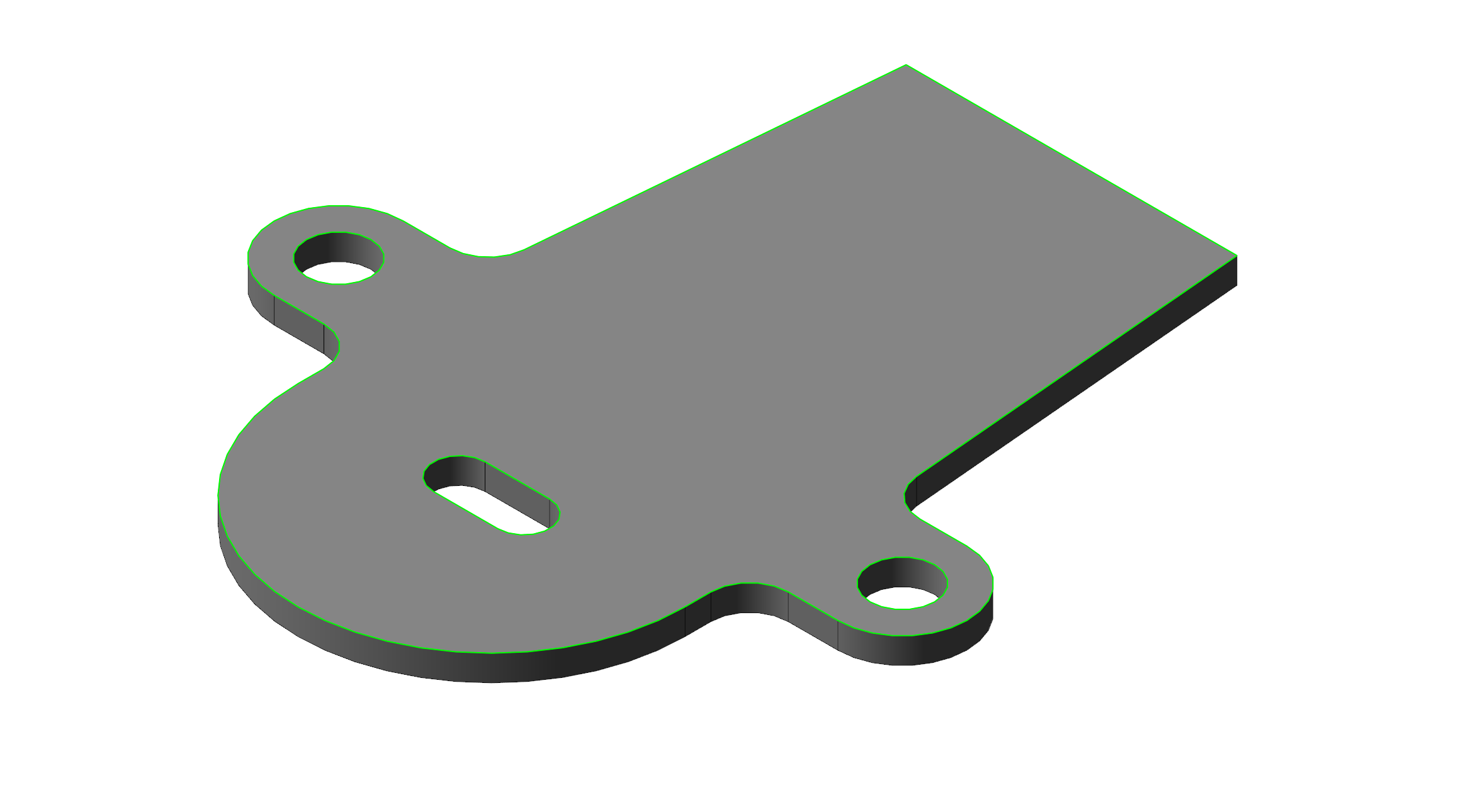
Fig. 1. Multiple closed sketches extruded into a sheet body
Open contours can also be extruded by a specified distance into one of the two directions. If the contour contains an arc, the contour curvature must be continuous. An open contour is the only option that can be extruded into a sheet body with bents.

Fig. 2. A sheet body built from an open sketch containing an arc and two segments joined at an angle
Creating a Split Shell
A split shell is created from one or two 2D contours. A single contour is extruded, and the resulting surface receives the specified thickness. A closed contour will have a gap at the specified location.
Drafted split shells can have conical or cylindrical bends while maintaining the fillet radii of the original contour. Contour arcs can be segmented and replaced by a set of approximating segments.
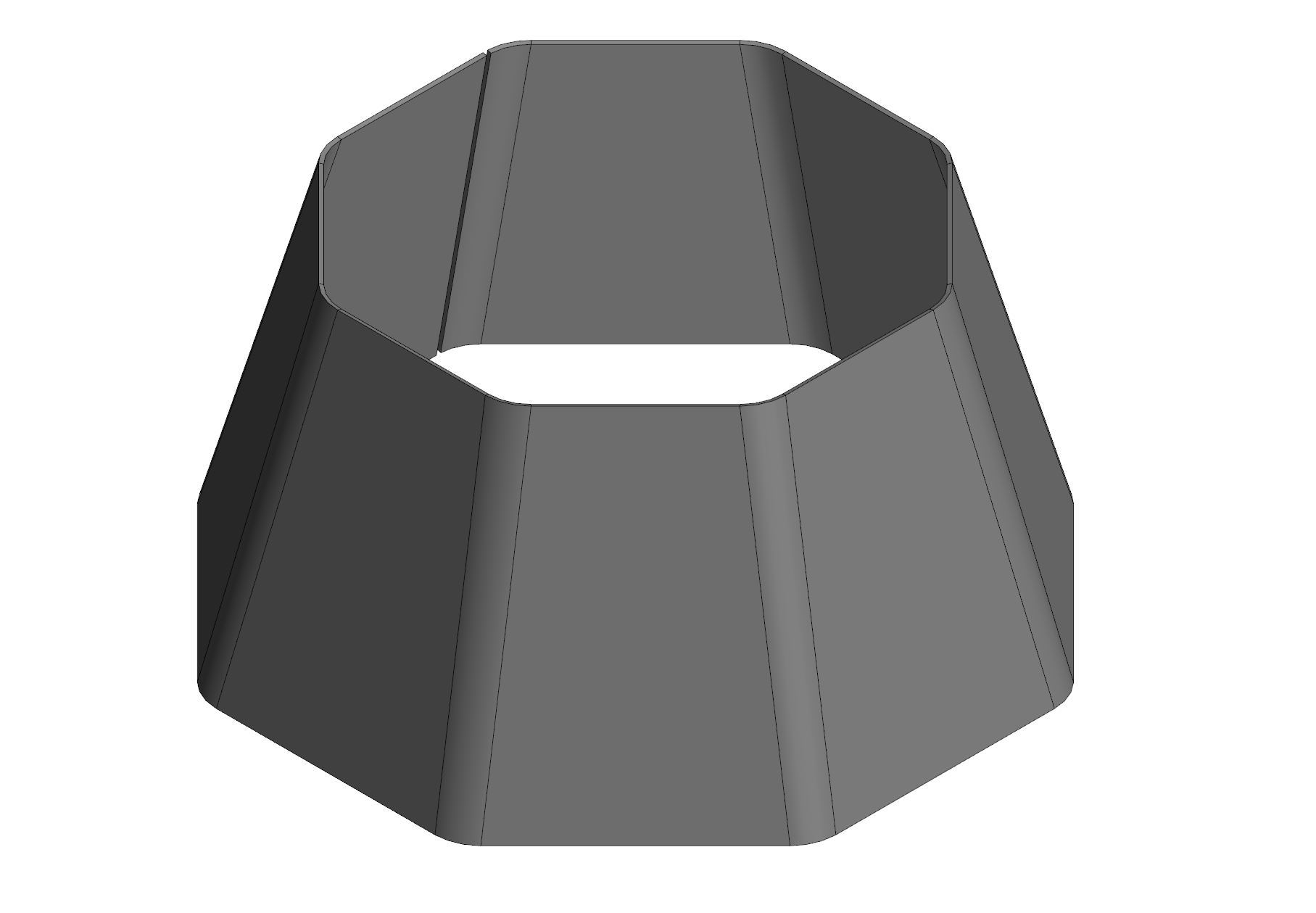
Fig. 3. A split shell with preserved bend radii
For two contours, the contour segments are joined by ruled surfaces, which then receive thickness. To avoid twisting, contours are automatically or manually divided into smaller segments.
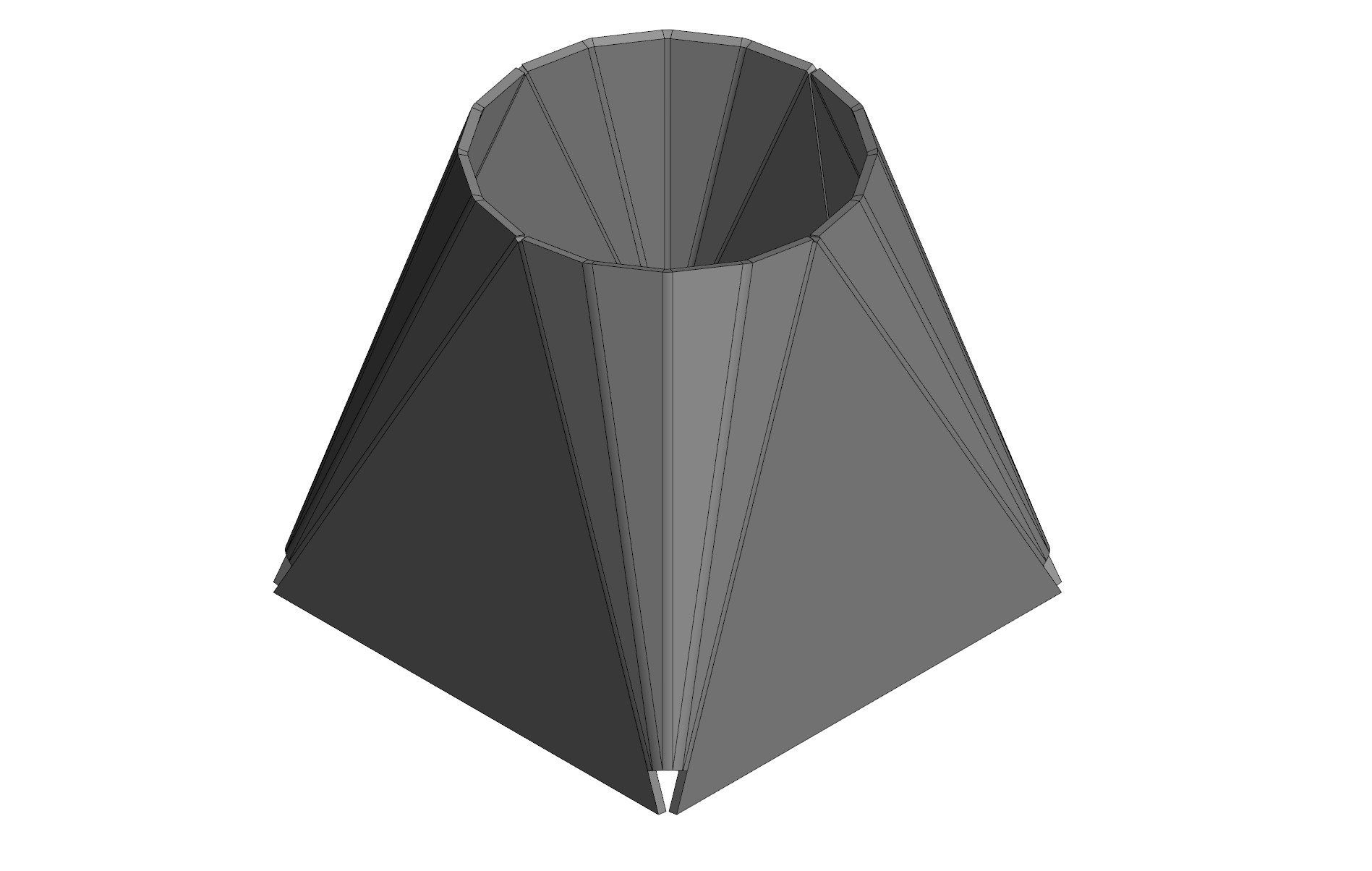
Fig. 4. A split shell built with segmented arcs of the second contour
Solid to sheet body conversion
You can convert a solid body into a sheet body. It may be required if the part has been originally built as a solid or surface, or imported. To convert a model into a sheet body, the user specifies a flat fixed face. Each selected fold edge adds a new face to the resulting sheet body. The first edge must be adjacent to the fixed face. A bend with a specified radius is created at the edge.
Each face of the original body is used only once in the resulting sheet body. The edges between the faces included in the sheet body that do not form a bend become the split edges. The split edges are closed.
In the figure below, the fixed face of the solid is green, the edges forming bends are red, and the split edges are blue. The resulting sheet body is shown on the right.
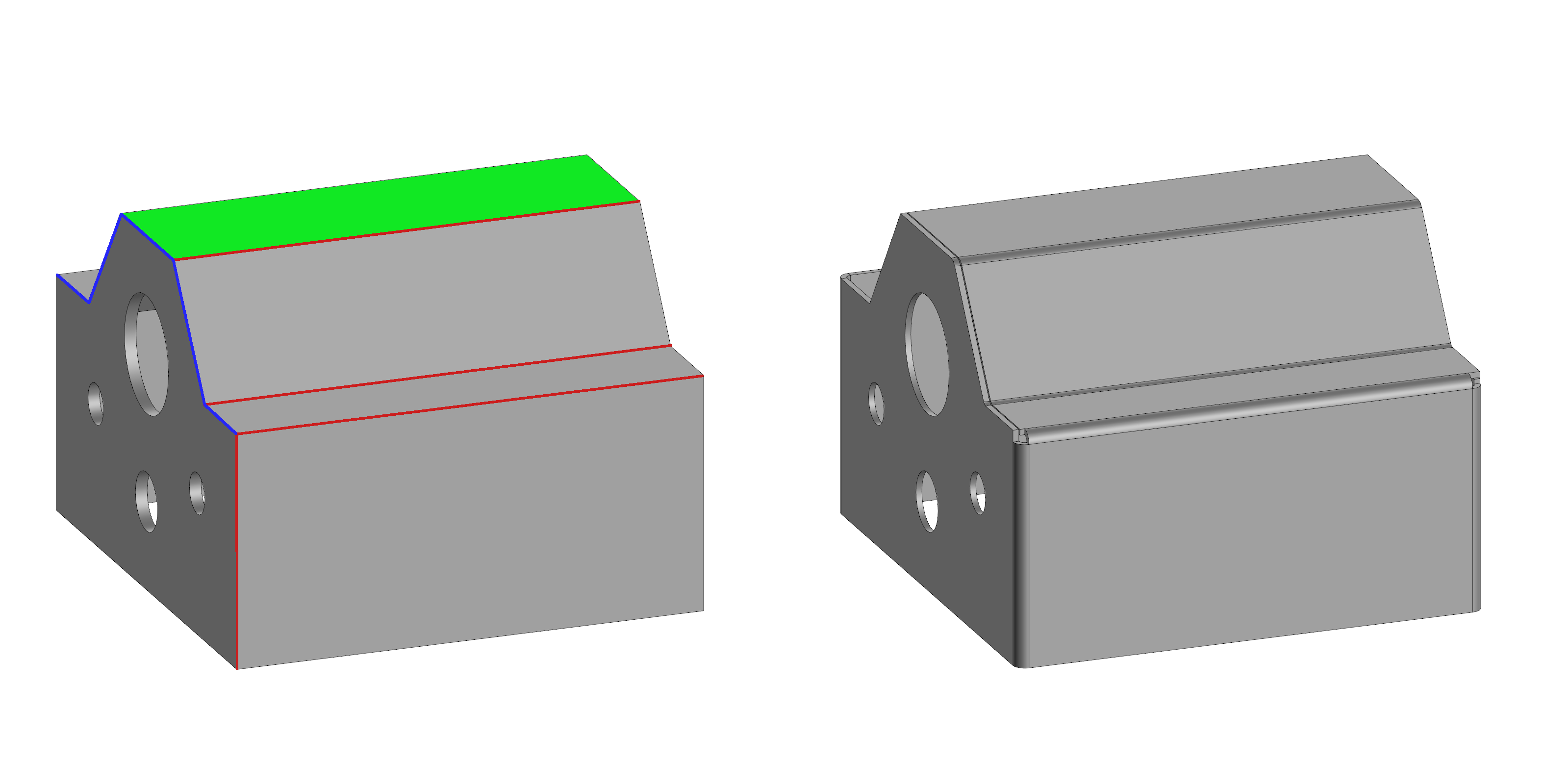
Fig. 5. Solid to sheet body conversion
Sheet Body Operations
The most common operation with sheet bodies is bending. There are several distinctive ways to bend a face.
C3D Modeler supports the following bending operations:
- along the line
- edge flange
- sketched bend.
Bend along line
A bend line can be a segment that belongs to multiple flat faces. Bends would be created along the selected edges only.
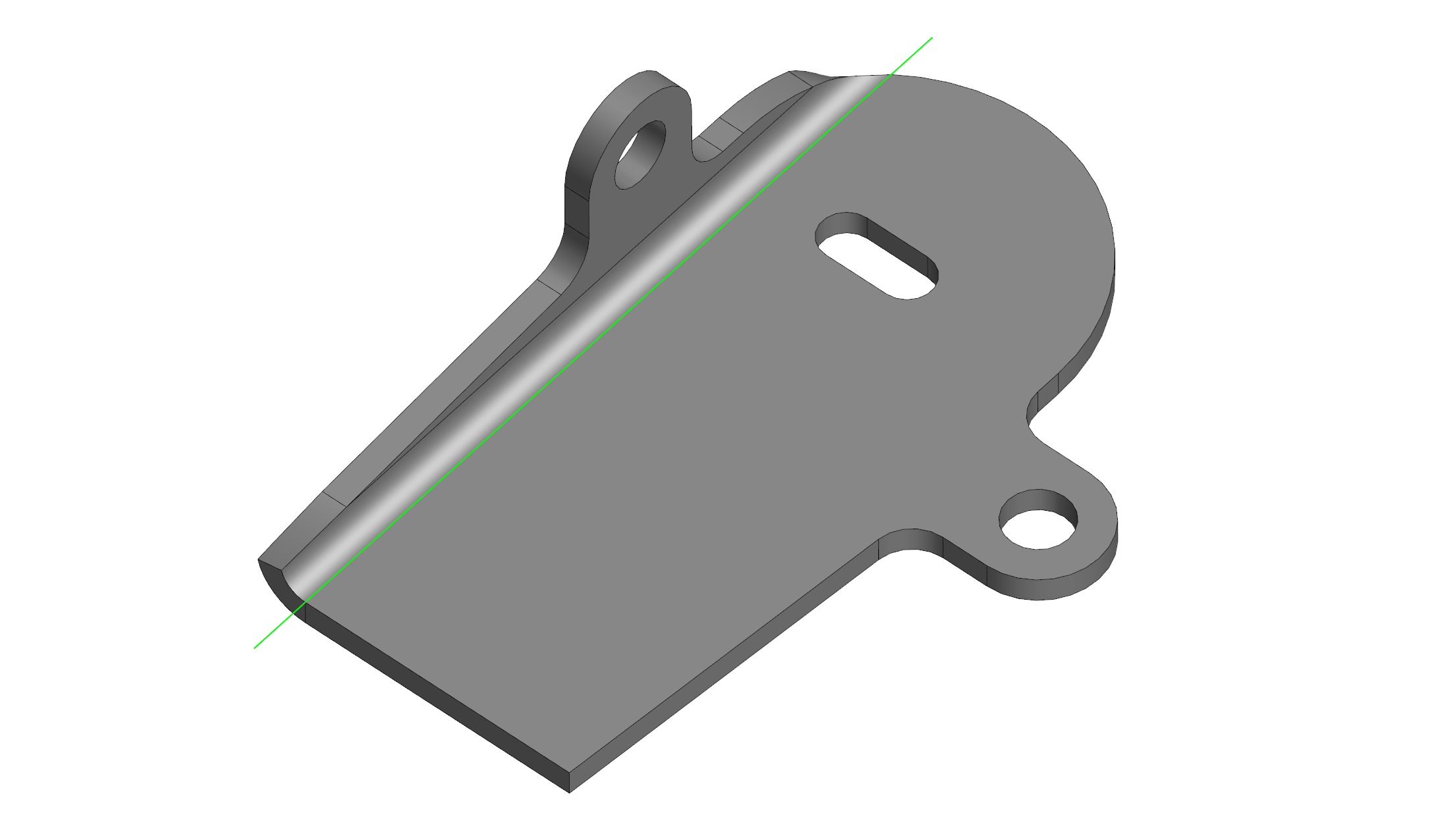
Fig. 6. Bend along the line
Edge flange
An edge flange is created at one or more edges of a flat face of the sheet body. A bend with a flat flange is attached to the end surface of the sheet body. Bend sides can have a positive or negative draft angle. For chains of adjacent edges, it is possible to have the corners closed.
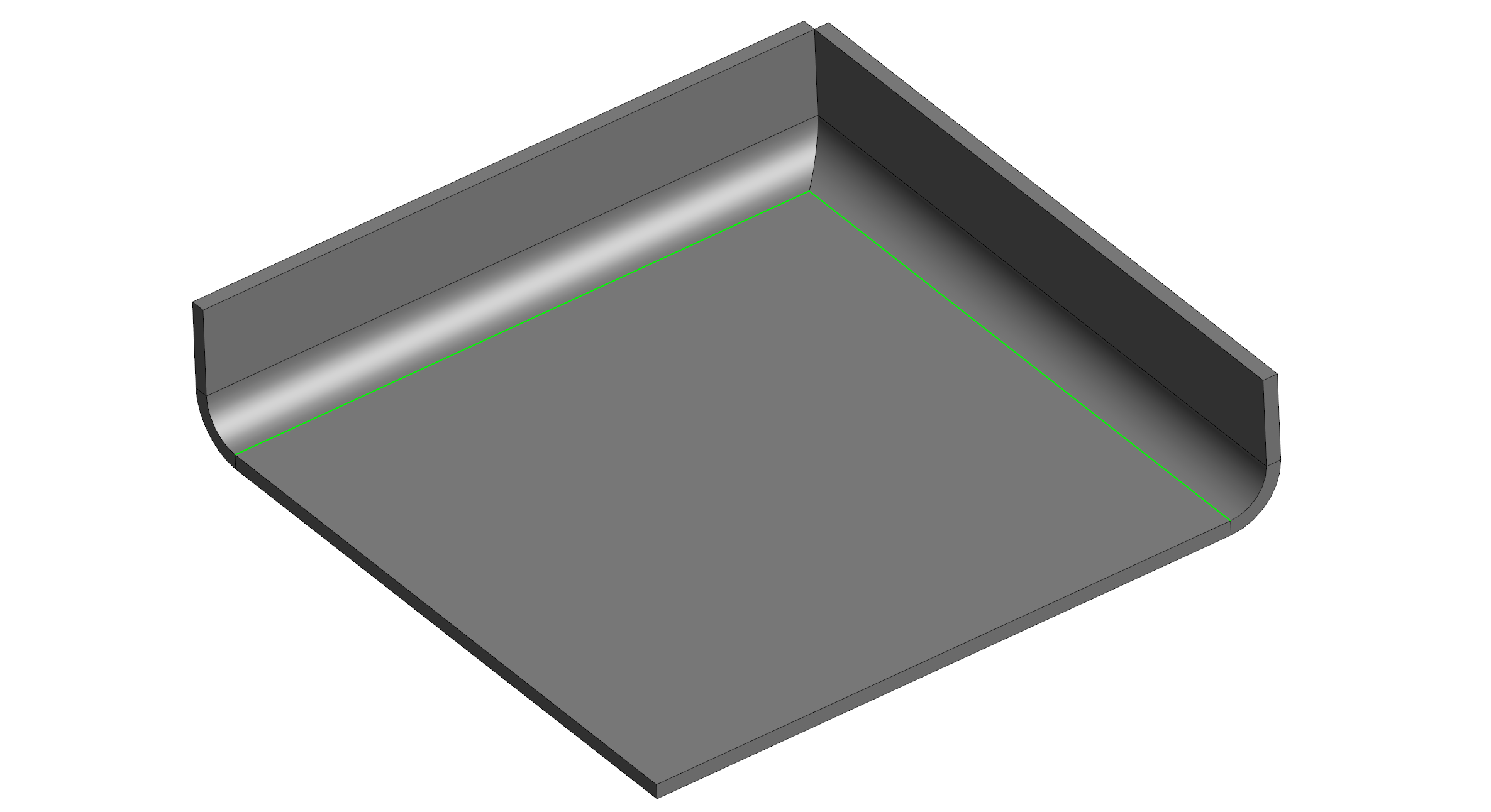
Fig. 7. A bend with multiple edges and the "corner closed" option enabled
Sketched bend
A sketched bend uses one or more straight edges of one or more sheet body faces. The sketch, consisting of lines and arcs, must lie in a plane perpendicular to the edge where the bend will be created, with one end positioned on the projection of that edge onto the plane. The sketch and its instances at each edge are used to create sheet bodies. Bends are created at the arcs and discontinuities of the straight segments of the contour, as well as between the contour and the sheet body. The resulting bodies are merged with the original sheet body. The corners are closed if requested by the user.
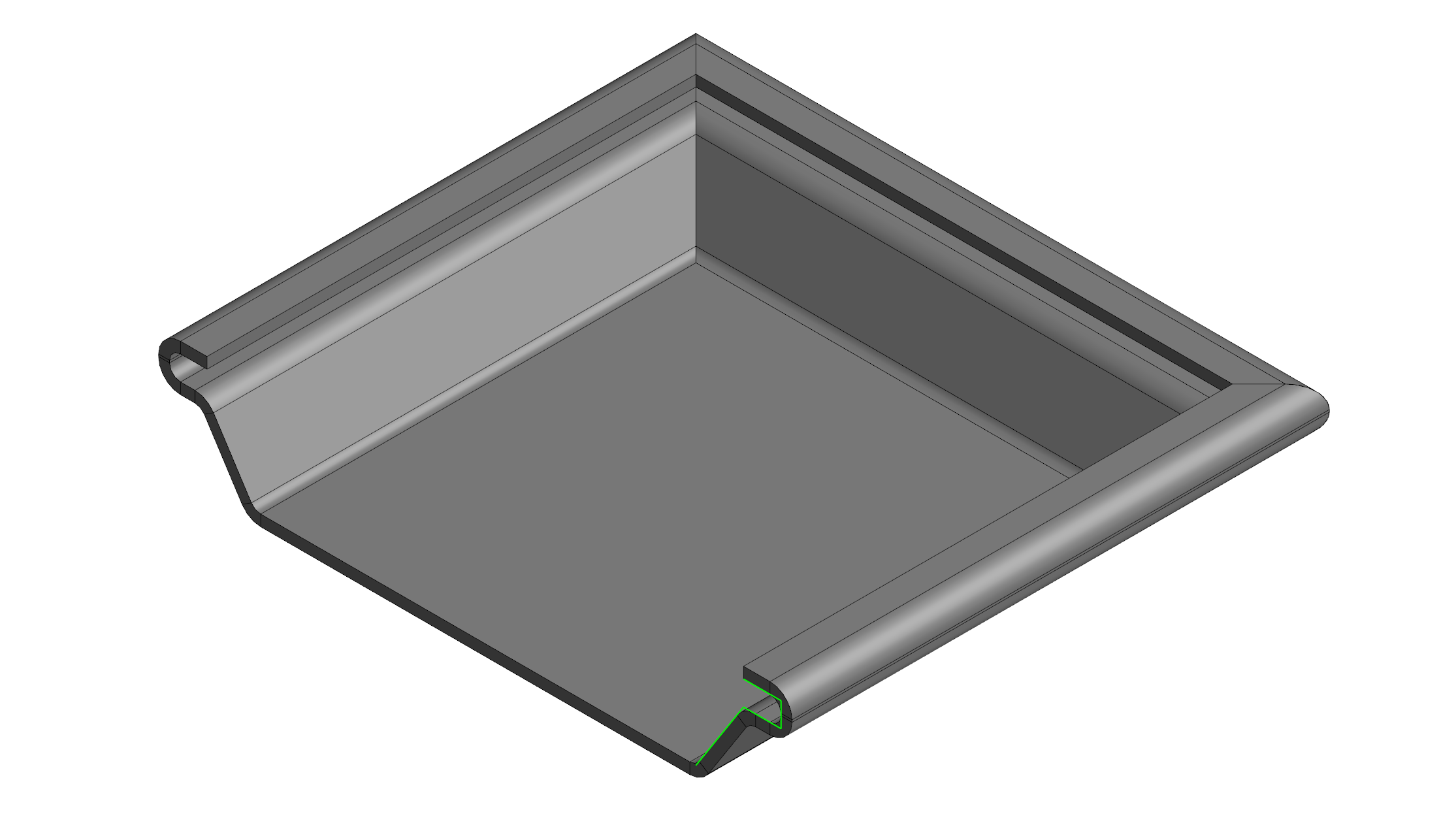
Fig. 8. A sheet metal body after the Sketch Bend operation
Closed Corner Operation
When a sheet body face has bends on two adjacent edges, they form a corner. We can fill the gaps in the corners by extending the bend flanges. The Closed Corner operation does exactly this. In some cases, faces are not extended but trimmed. In the operation settings, the user specifies the gap size and the type of closed corner (individually for bends and their flat extensions). When we are closing a corner between adjacent edges of the same face, there are several options:
- butt
- miter
- relief.
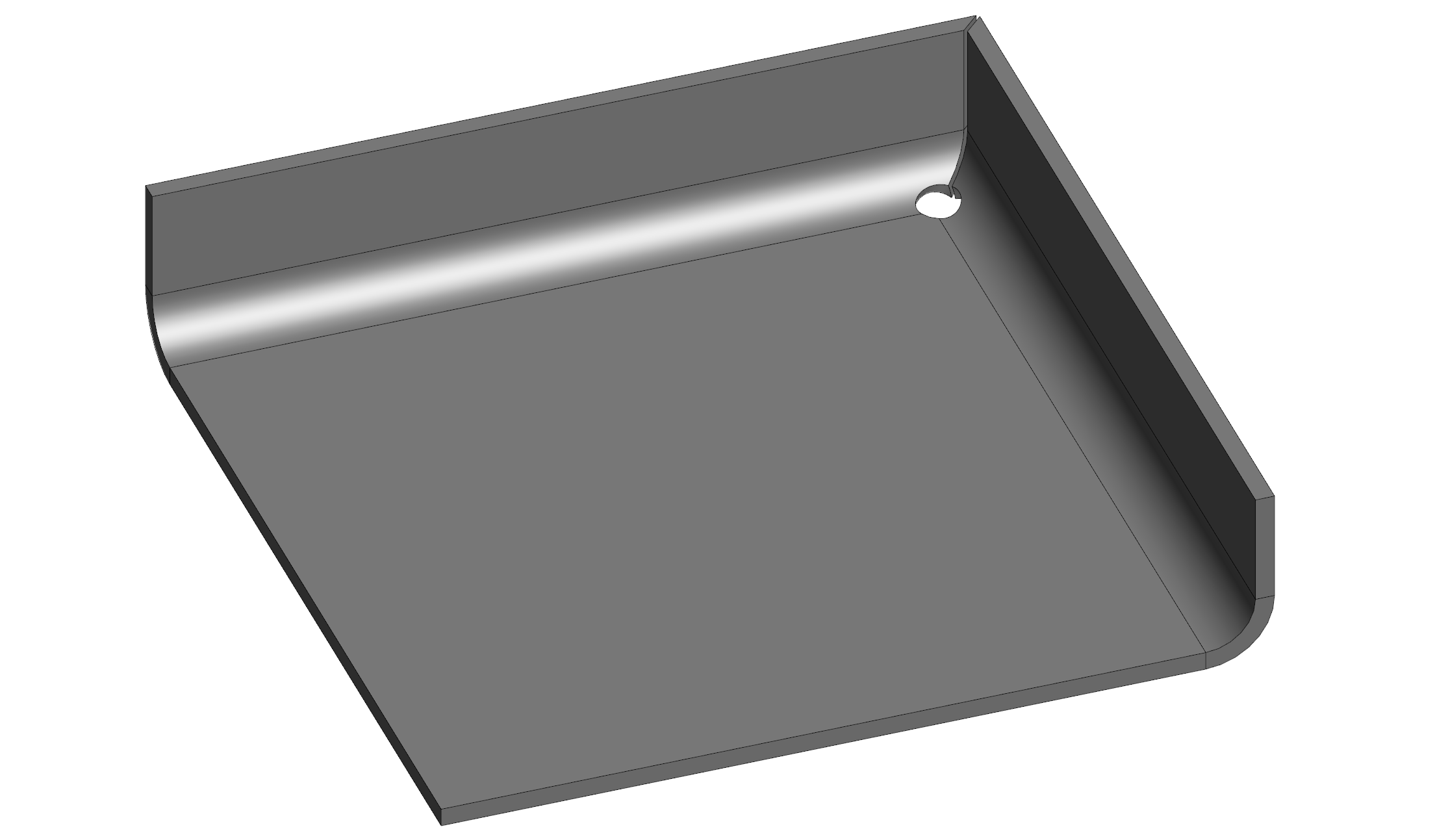
Fig. 9. Miter flange with a gap and corner relief
Bending is not the only way to shape a sheet metal body. Punching and stamping are manufacturing processes used to shape flat sheets. Let us examine how these processes relate to 3D modeling.
Sheet Body Jogs
Jogs are two straight bends combined in an S-shaped feature. Each bend is defined by a segment on a flat face or a line.
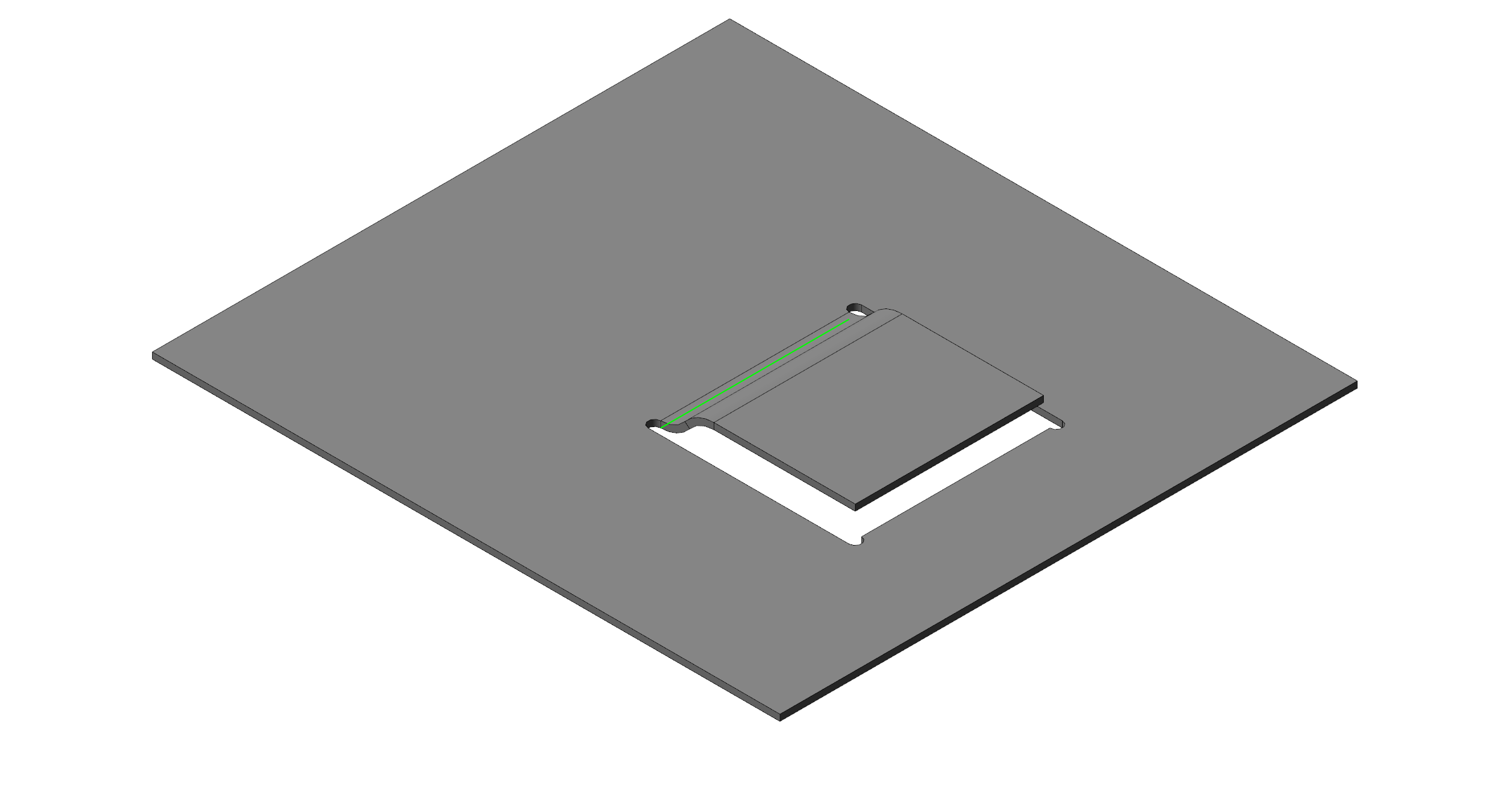
Fig. 10. A sheet body jog
Normal Cutouts in Sheet Bodies
A cutout is defined by a closed contour. It is not just a simple Boolean subtraction. A normal cutout follows the bends of the sheet body. That is, the virtual body being subtracted passes through all the bends of the sheet body.

Fig. 11. A sheet body cutout with the specified thickness
Forming Tools and Formed Features
A formed feature is defined by a single open or closed contour located on a flat sheet face. The contour represents the bottom of the formed feature. There are piercing formed features that cut through the sheet face.
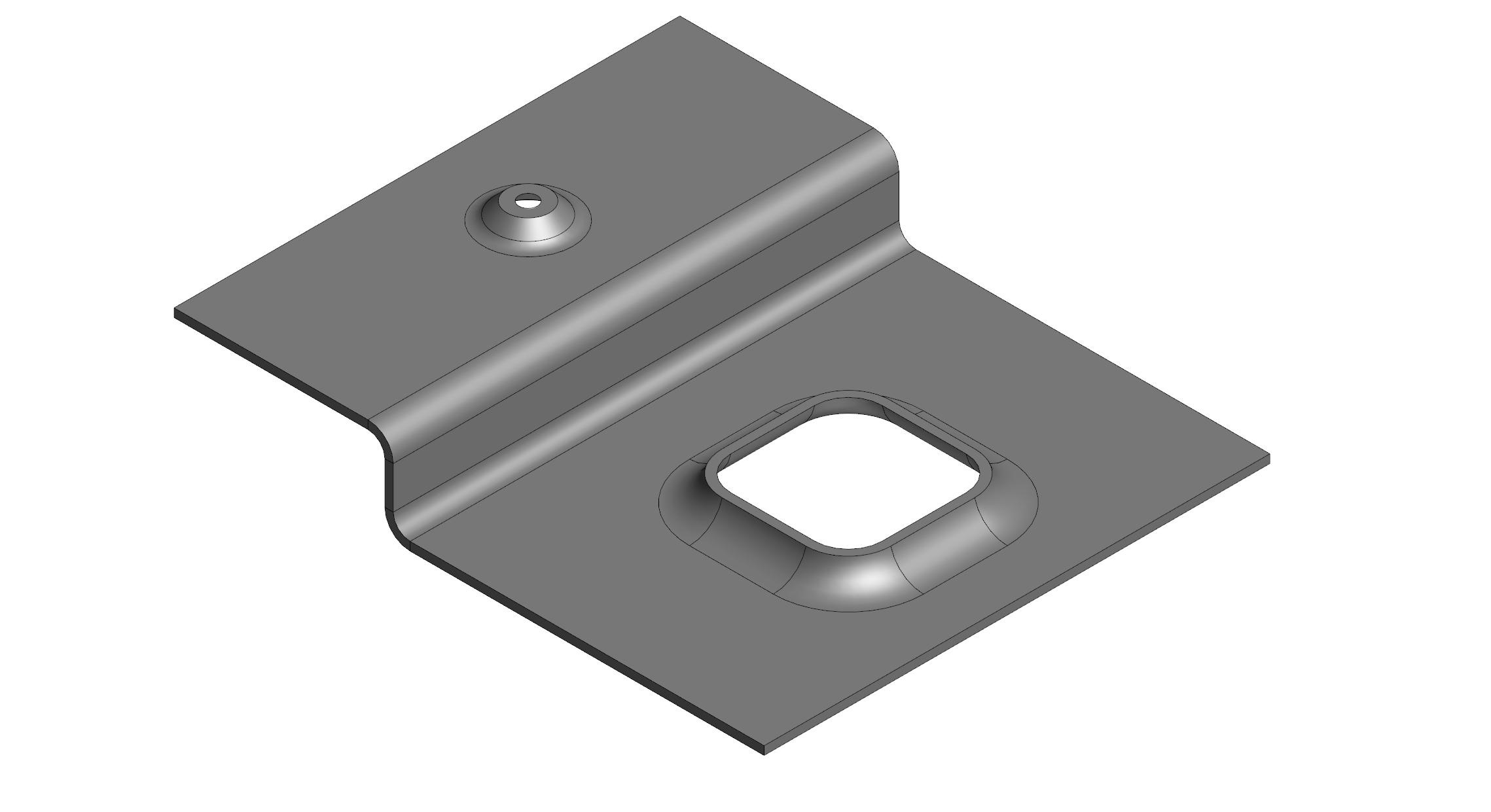
Fig. 12. A piercing formed feature in the sheet body
A forming tool is an arbitrary body that acts as a punch or a die. The user can specify which faces of the forming tool will cut through the sheet body. The depth of the formed feature, the fillet radius between it and the sheet body, and the fillet radius applied to the forming tool’s discontinuous edges are user-defined. The forming tool cannot cross the bends of the sheet body. Formed features created by an arbitrary forming tool are discarded in the flat pattern.
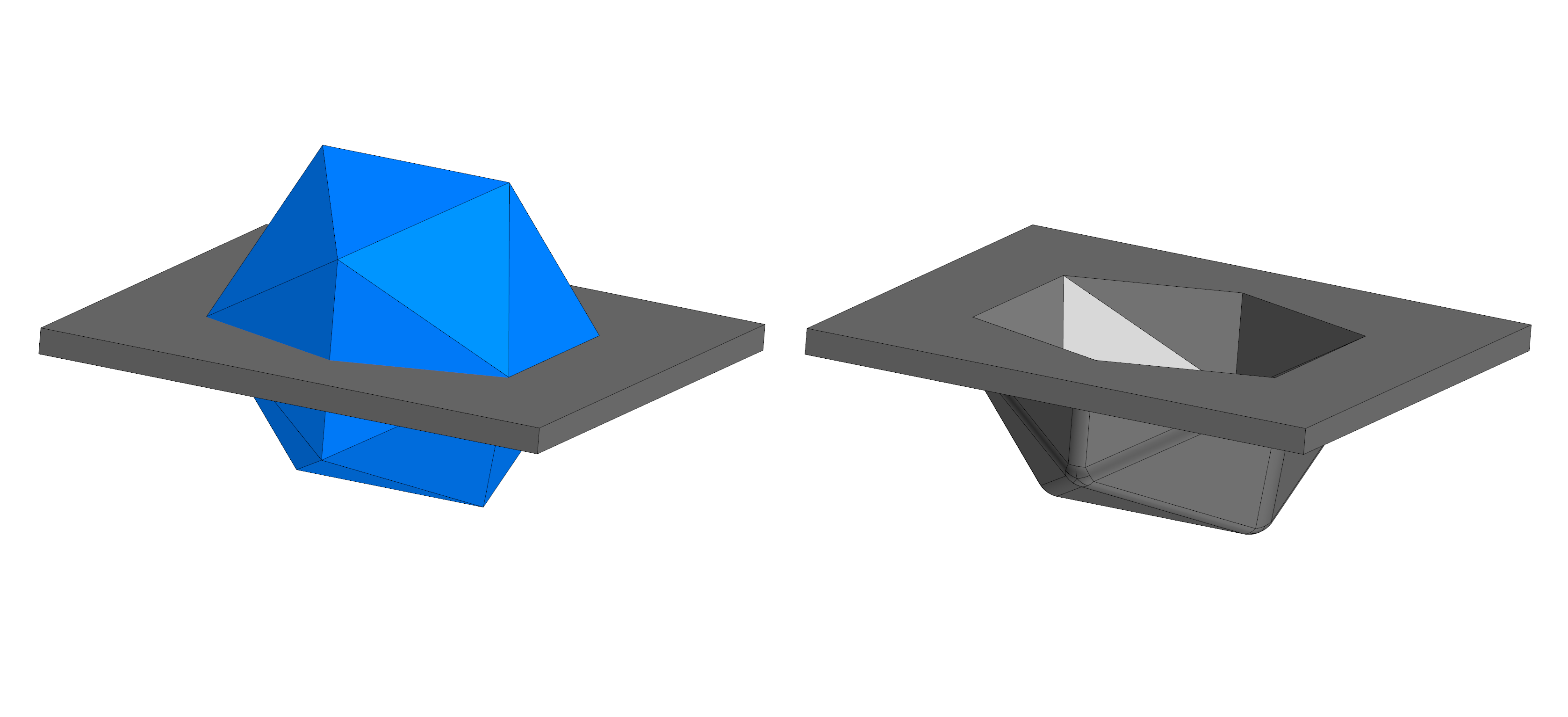
Fig. 13. A formed feature created by an arbitrary forming tool
An emboss feature is created from one or more closed or open contours on a flat sheet face. If the contour extends beyond the face, the emboss feature is trimmed to the face edges. There are three options for both ends of an emboss feature created from and open contour:
- closed
- open
- sheared
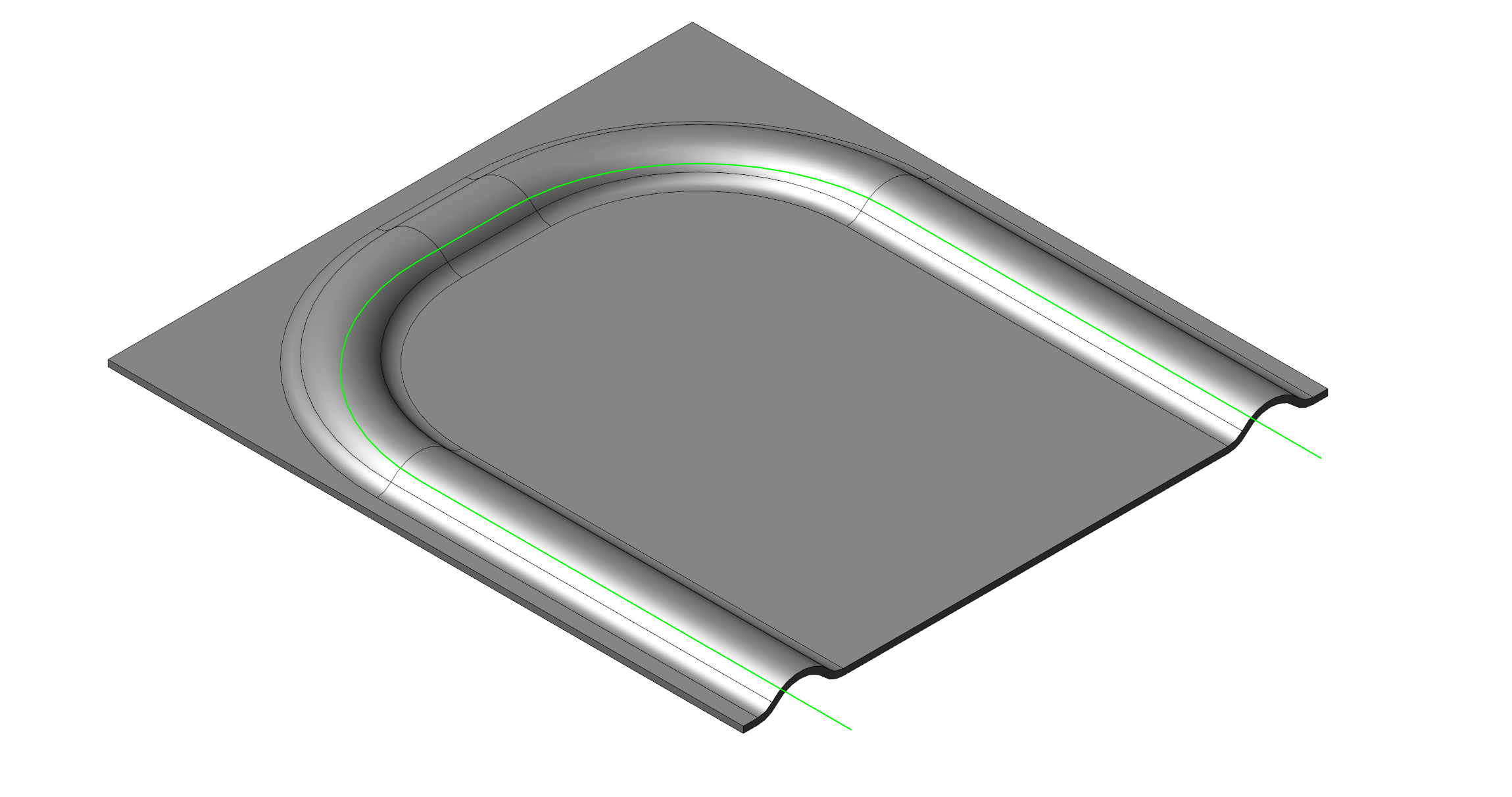
Fig. 14. An extruded feature with a round cross-section created from the sketch, which crosses the sheet face edges
Louvers are built from one or more segments on a flat sheet face. Louvers cannot cross the face edges or other louvers. There are closed-end and open-end recessed louvers. Closed-end louvers have smooth, dome-shaped ends, while open-end louvers have straight tabs bent upward.
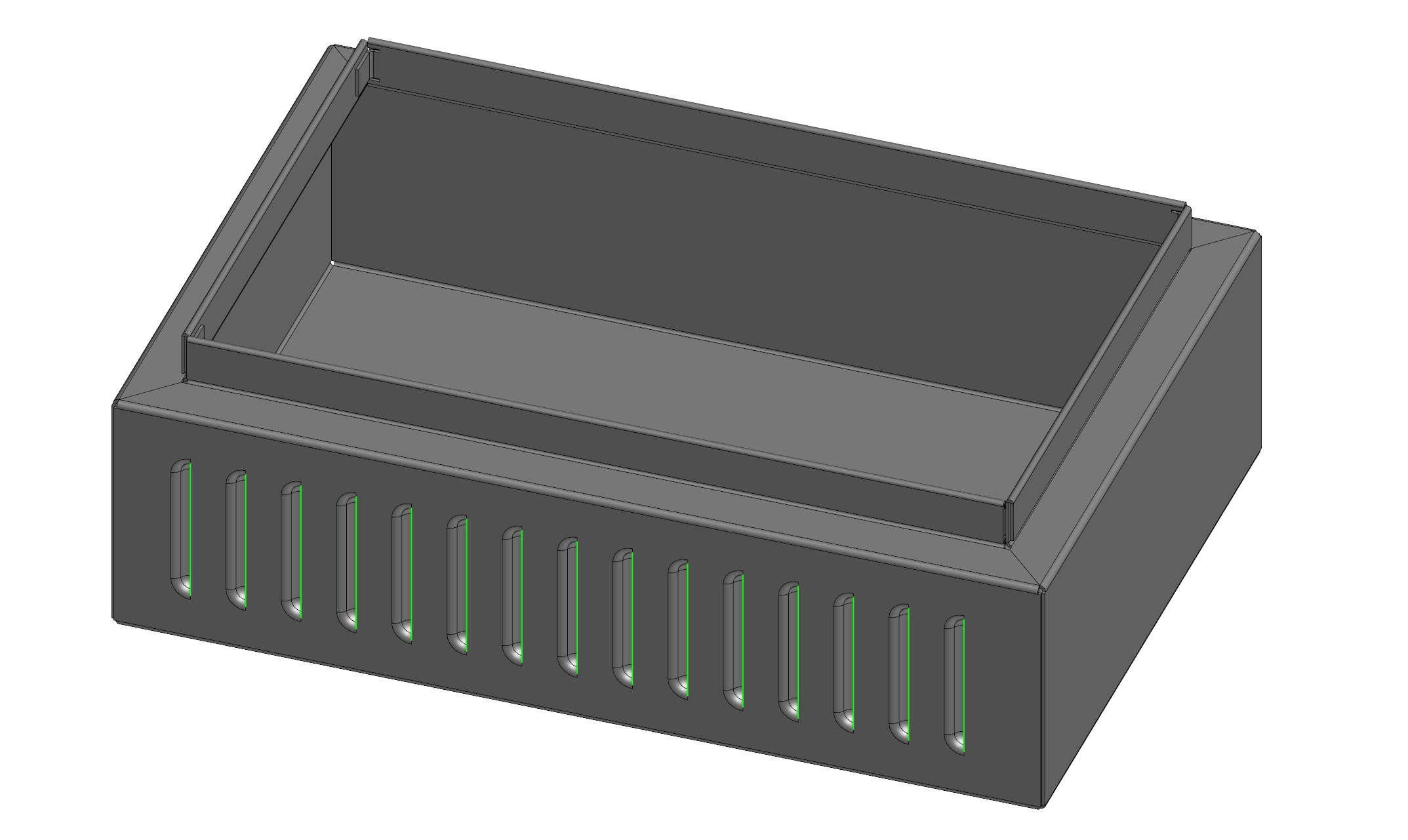
Fig. 15. A closed-end louver
Sheet Metal Gussets
A gusset is created from a contour located at the bend of the sheet body. If a gusset a present, the bend can still be unbent. When it is bent again, the rib is restored.
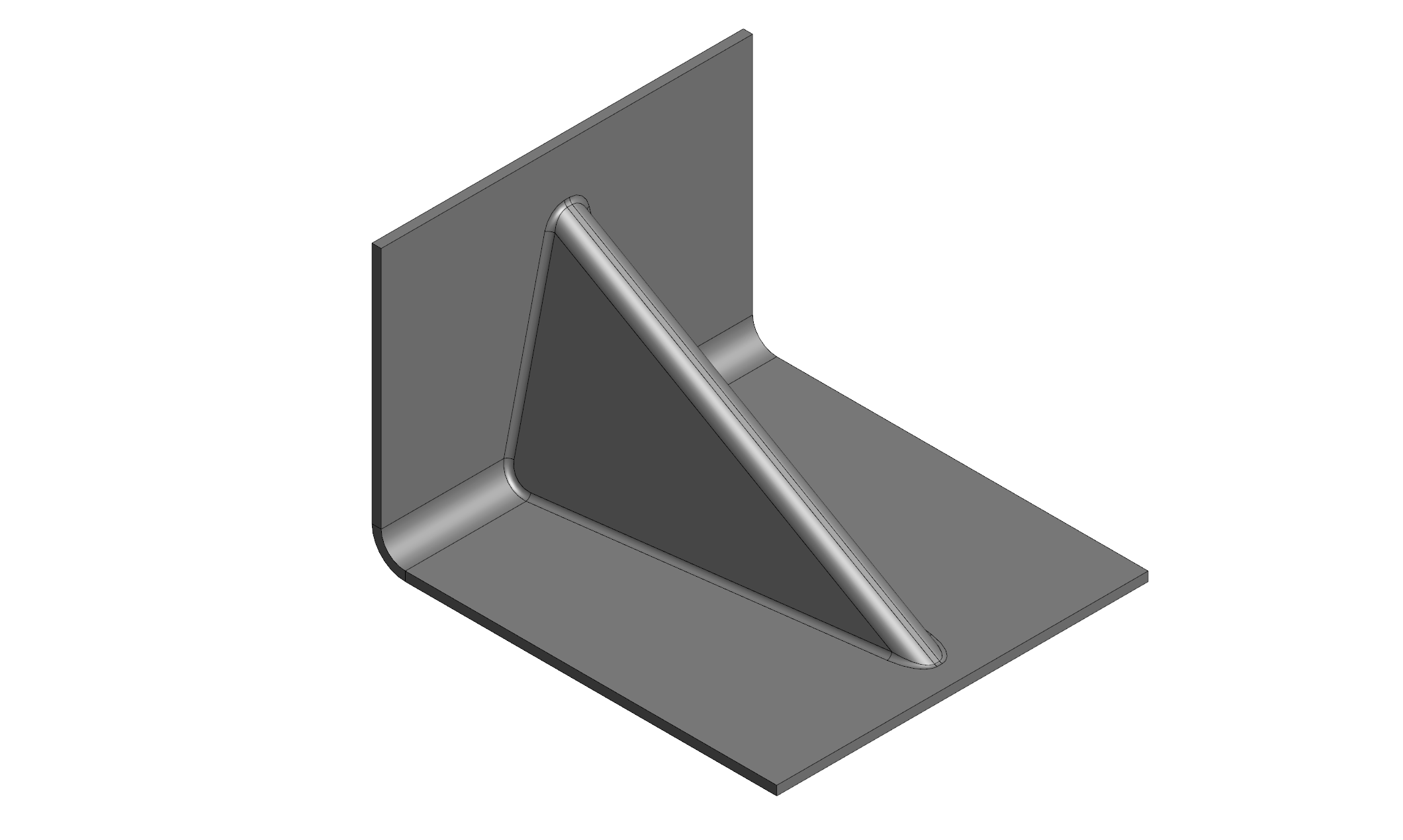
Fig. 16. A gusset on the sheet body
Flat Pattern (Unbent Sheet Body)
A sheet metal part is manufactured by forming a flat workpiece. A flat pattern operation returns a sheet body to its original flat state. When a sheet metal body is unbent, one face is fixed. Each bend is unbent in such a way that a plane tangent to the curved bend surface does not move.
Bends mostly connect two flat faces. In split shells, there may be chains of such adjacent bends that can only be unbent simultaneously.
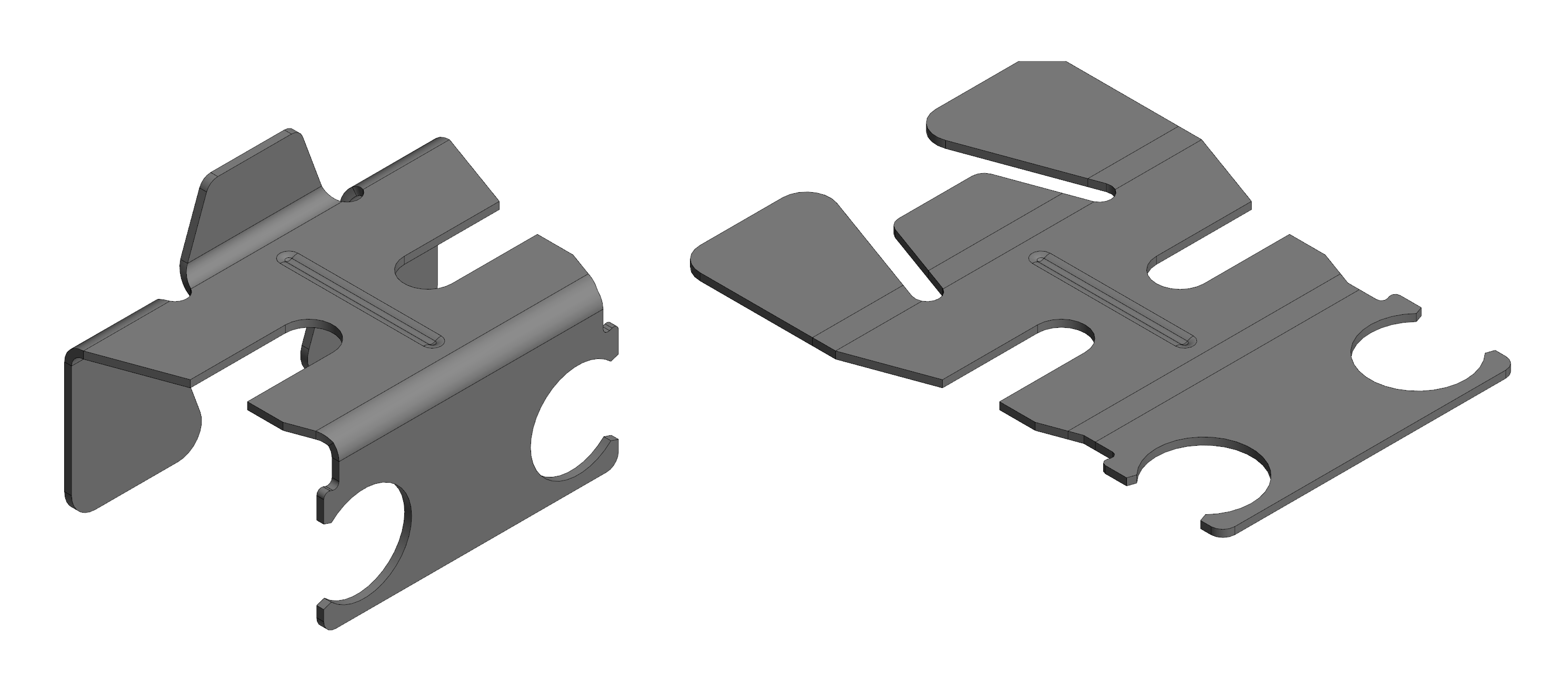
Fig. 17. A flat pattern after the sheet body is unbent
Conclusion
With the extensive tools of the C3D Modeler that we have examined — from creating plates and splitting shells to complex forming and flattening operations — engineers can efficiently and accurately model sheet metal parts. The flexibility and broad functionality of the kernel simplify and accelerate the design process, transforming complex tasks into logical, easy-to-follow workflows. We have covered just a fraction of the C3D Modeler capabilities. The kernel can do much more. It is an advanced, reliable tool suitable for any CAD developer or engineer.